Summary
- A business rule in LayerNext is a plain-English statement, not code. Anyone close to the exception can write one.
- Rules are optional. Most invoices move through standard processing without ever touching a rule.
- A rule either resolves something automatically or flags it as a task. There's no in-between.
- Tax logic, task notifications, and data linkage are all handled through the same rule format, not separate tools.
- Rules are indexed by entity, so the right one gets found fast even when there are thousands configured.
- Every rule tracks who created or last changed it, and can be switched off without being deleted.
- Tasks that come from unhandled cases, not just flagged rules, can become the basis for a new rule later.
The invoices that process cleanly were never the risk. The exposure sits in the ones that don't fit the standard pattern: a tax treatment that depends on where something shipped, a vendor with a non-standard payment term, a purchase order that needs a second signature past a certain dollar amount.
Gartner's Finance Automation Survey names exception management as the top priority for AP automation teams heading into 2026. It ranks ahead of straight-through processing itself.
Left to ad hoc judgment, these cases get handled differently depending on who's dealing with them that week. Audit trails thin out. Policy stops being consistent.
LayerNext's Business Rules Engine exists to close that gap. It lets a team define entity-specific logic once, in plain English. That logic gets reviewed and adjusted like policy, not buried in a developer's backlog.
This article walks through how it actually works, using real screens from a live account.
What the business rules engine does
A business rule in LayerNext is a plain-English statement. It tells the system what to check for, how to interpret a piece of data, or what to do when a condition is met.
Rules apply per entity. A specific supplier, customer, or account can carry its own logic, separate from every other entity in the system.
In practice, the flow looks like this:
- A new invoice, transaction, or document arrives.
- LayerNext checks whether a rule has been configured for that entity.
- If a rule applies and its instruction is to resolve the situation, the system applies it and keeps moving. No one sees it happen.
- If a rule applies and says to flag the situation, LayerNext creates a task. It does the same when standard validation turns up something that needs a judgment call.
- If no rule applies, that's fine too. The invoice keeps moving through LayerNext's standard processing, the same extraction, validation, and PO matching steps every invoice goes through.
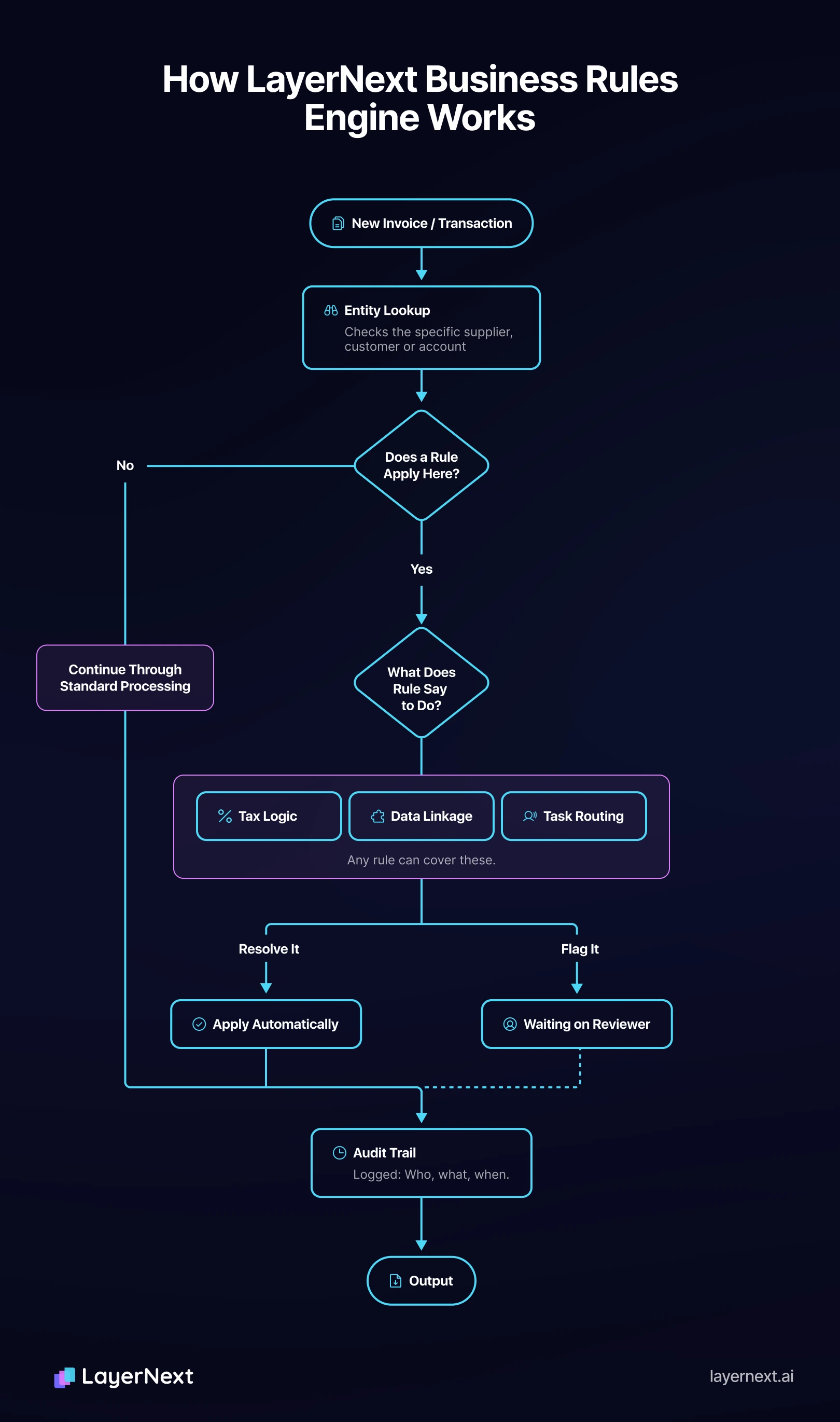
Rules aren't a requirement for an invoice to move. They're additional logic for the cases that need it.
Most invoices don't hit a rule at all, and that's by design. A rule only needs to exist where the default handling isn't enough.
The range of what a rule can cover
Four vendor rules are visible on the dashboard, one each for Bright Light Solutions, Creative Promotions, Apex Metal Works, and Summit Heating. Each one defines how LayerNext recognizes that vendor and where its transactions should route. That's one use of the engine, not the whole scope of it.
The same plain-English format also covers:
- Entity identification.
A rule can define how to recognize a specific vendor or customer altogether: a name, an account number, an address, a set of keywords that catch variations in how that entity shows up on a document. The example below shows this in practice. - Tax logic.
A rule can check that an invoice's tax treatment matches what's expected for the province or state it shipped to. It can apply a specific tax handling for a given entity and flag anything that looks off. - Task assignment and notifications.
A rule can route work to specific people based on a condition. If a purchase order comes in over $2,000, for example, a rule can notify the relevant admins. The invoice gets reviewed instead of moving on autopilot. - Data linkage and calculation.
This covers connecting transaction records to the right tables, or defining how a value should be calculated for reporting.
Every one of these is written and edited the same way. It's a sentence in the rule editor, not a separate configuration screen per rule type.

Rules are written in plain English, not code
Adding a rule doesn't involve a formula builder or a query language. The Add Business Rule screen has two fields: a Category dropdown (for example, "Automation") and a Rule field, a plain text box with the prompt "Type Your Rule...". The way someone would explain an exception to a colleague is the same way they write it into a rule. Nothing about the process asks a finance team to think like an engineer to get something built.
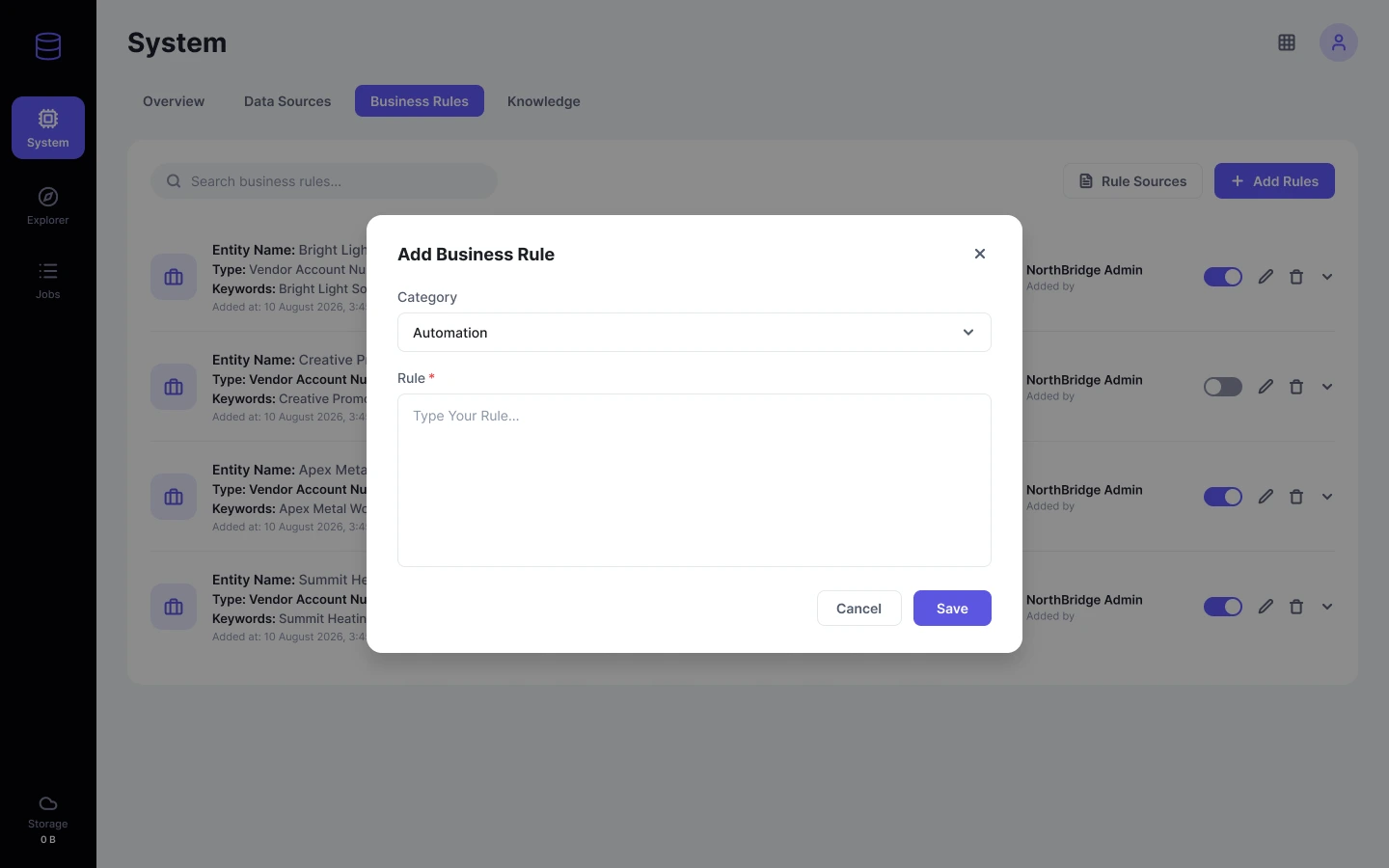
That's the entire authoring interface. Someone who understands the exception writes the rule the way they'd explain it to a new hire, then saves it. Whoever is closest to the exception can do this, without waiting on anyone else.
There's no translation into code. No developer has to ship it.
Inside the Business Rules dashboard
Every rule that's been added lives in one list, under Settings > Data Management > Business Rules.
The list isn't built just to store rules. Every entry carries where the rule came from, what data it's tied to, and who's responsible for it. That matters once a team is managing hundreds of rules instead of a handful. Finding out who last touched a supplier's rule, or which rules were pulled from a specific system, needs to be answerable from the list itself, not from someone's memory.
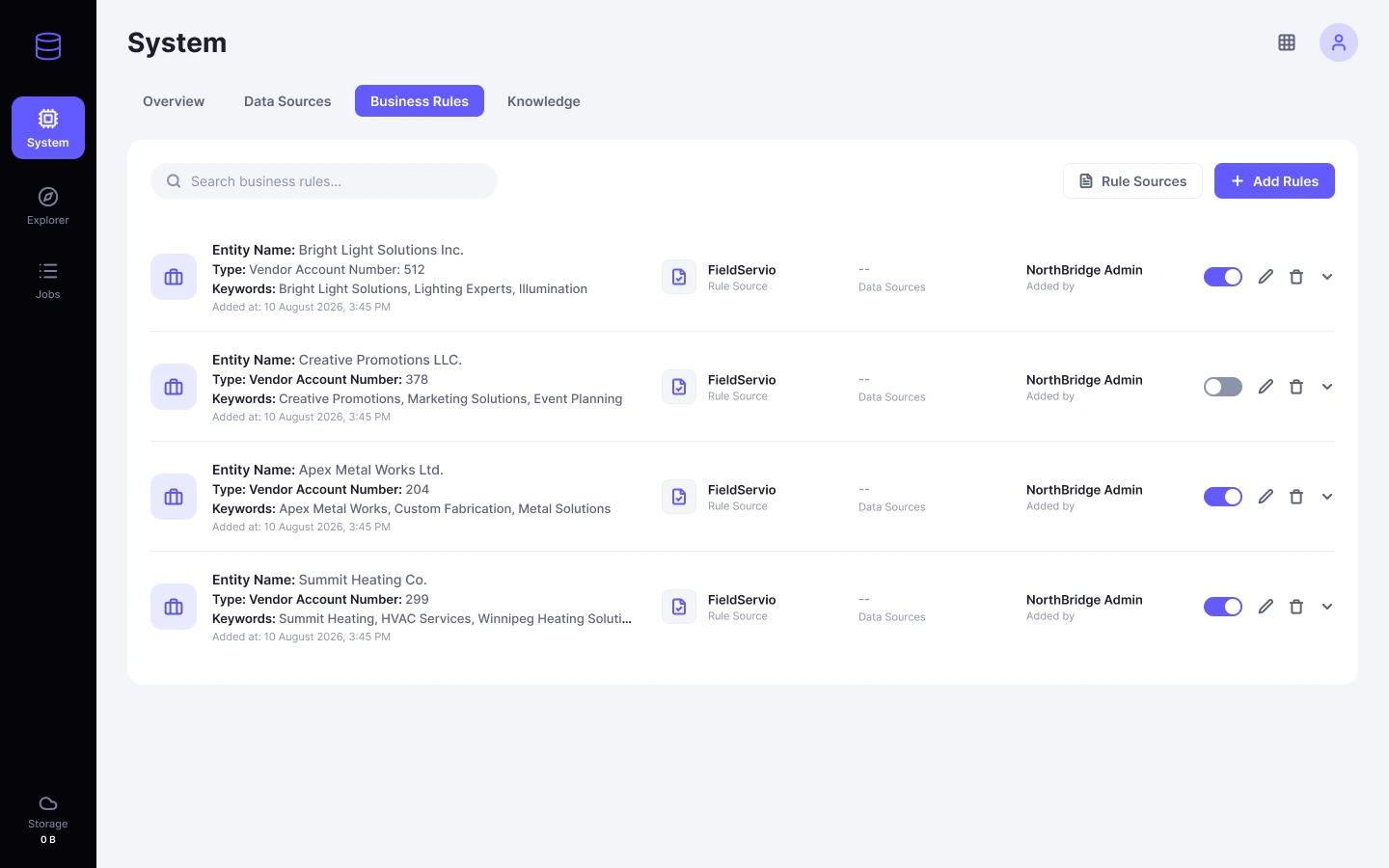
Four vendor rules are visible in this account, for Bright Light Solutions, Creative Promotions, Apex Metal Works, and Summit Heating. Their Rule Source is listed as FieldServio, the account's legacy ERP, not Manual. That distinction matters: a rule doesn't have to be typed from scratch every time. It can also be pulled from an entity's existing record in a system a team has already used for years, without anyone re-entering that data by hand.
Three of the four rules are switched on. Creative Promotions LLC is currently off, a live example of pausing a rule without losing it, covered in more detail below.
A real example, walked through
The Stellar Tech Solutions rule is worth a closer look. It shows what a rule looks like when its job is defining an entity itself, not reacting to one.
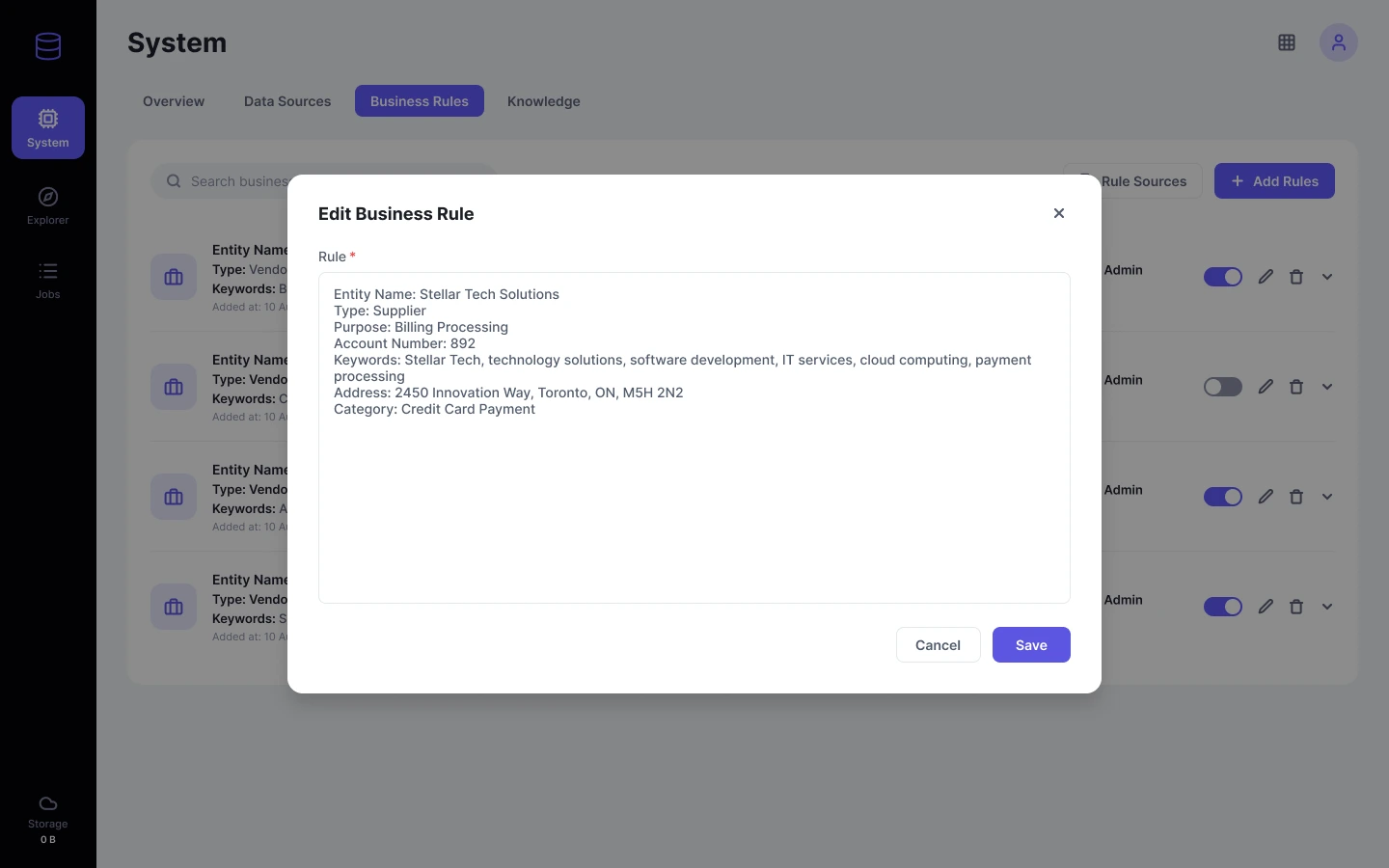
That's what LayerNext checks against every time a document mentions Stellar Tech Solutions. The keywords list does more work than the entity name alone: tech, software, cloud computing, so a slightly different invoice header, or a related product line, still gets tied to the right vendor. The category field then tells the system how to route it, Credit Card Payment in this case, without anyone making that call invoice by invoice.
Written as plain fields instead of a lookup table, this is something a finance team can read, edit, and own directly. If the address changes, or a new keyword needs adding because a supplier rebrands, whoever owns the rule updates it. Nothing needs to be redeployed.
Finding the right rule among thousands
A handful of manually written rules is easy to check every time an invoice comes in. Thousands of entity-specific rules are a different problem.
An enterprise might have one for every supplier, customer, and account it deals with. Checking all of them on every transaction wouldn't scale.
LayerNext indexes rules instead of scanning the full list each time. A new invoice gets matched by querying the relevant entity, a supplier's name, for example. The keywords in a rule like the Stellar Tech Solutions one are part of what makes that lookup work, catching a document even when it doesn't spell the vendor's name the same way twice.
That's what makes it realistic to let rules accumulate over time. Teams don't need to consolidate everything into a handful of generic policies.
Turning a rule off without losing it
The toggle next to each rule switches it on or off without deleting it. Creative Promotions LLC, switched off in the dashboard above, is a live example: the rule and its history stay exactly as they were, ready to go back on whenever it's needed again.
That matters for anything seasonal, anything under review, or anything a team just wants to pause without losing the record of who wrote it and why.
Every change is tracked
Each rule carries an "Added by" or "Modified by" line, with a name and a timestamp. That's not incidental.
It answers who changed this and when, without digging through a separate change log. And it's part of the same audit trail LayerNext maintains across every automated action, not just rule edits.
From rule to action: how exceptions become tasks
Tasks come from two different places, and it's worth keeping them separate.
One is a rule written specifically to flag something. The other is LayerNext's standard validation catching something no rule was ever written to handle. Either way, the invoice doesn't get stuck silently. It gets a task, with a name attached to it.
That last row is the important one. It's not the rules engine failing. It's standard processing doing its job on a case nobody had written a rule for yet.
Every task a human resolves that way is a candidate for a new rule. That's how the system's coverage grows, without anyone scheduling a project to "expand the rule set."
Writing your first rule
If there's a supplier-specific policy your team currently tracks in someone's memory or a shared spreadsheet, that's usually the best candidate for a first rule.
- Go to Settings > Data Management > Business Rules.
- Click + Add Rules.
- Choose the Category that fits (for example, "Automation").
- Write the rule in the text field, in plain English, the way you'd explain it to a colleague.
- Save it. It appears in the list immediately, switched on by default.
- Use the pencil icon any time to edit it, or the toggle to pause it.
Next step
If you have a policy you're not sure how to phrase as a rule, reach out to support@layernext.ai and describe the exception. That's usually a faster path than trying to reverse-engineer the logic from an old spreadsheet.
FAQ