Summary
- The Business Central Payables Agent reads PDF invoices from a monitored Microsoft 365 mailbox and drafts purchase invoices that a supervisor can review. It has been generally available since November 7, 2025, and runs only in Business Central online.
- It uses 50 Copilot Credits per invoice plus 5 per line. At $0.01 a credit on pay-as-you-go, a 3-line invoice costs $0.65 and a 25-line invoice costs $1.75.
- The agent proposes PO line matches, and Business Central checks quantity, receipt, unit of measure and price. The warnings do not stop a draft from being finalized.
- The agent has no approval flows and no anomaly detection. A finalized draft is an unposted purchase invoice that goes through Business Central's own approval workflow.
- The agent reads PDFs only, up to 10 pages and 5 MB each, and processes up to 100 emails and 500 invoices a day. It runs one agent per company, is validated in English only, and cannot yet process vendor credit notes.
- It fits short invoices with no PO. Long PO-backed invoices, freight, partial receipts, credits, routing by exception, statements and rebates stay with the AP team.
- LayerNext replaces the agent. The AP inbox connects to LayerNext, which reads and checks each invoice, sends only exceptions, questions and rule-assigned approvals to a person, and posts the rest in Business Central through the API.
The Business Central Payables Agent is Microsoft's built-in AI agent for vendor invoices. It watches a Microsoft 365 mailbox, reads each PDF, finds the vendor, drafts a purchase invoice with lines and proposed PO matches, and finalizes it into an unposted purchase invoice. A supervisor can review the draft first. It is billed in Copilot Credits: 50 per invoice plus 5 per line.
Microsoft introduced the agent for overhead bills such as rent, utilities, leasing, phone bills and software subscriptions. A distributor's stock invoices are tied to POs, can run to dozens of lines, carry freight or a fuel surcharge, and may arrive before or after a partial receipt. Each line adds to the credit count and gives the reviewer another match to confirm. Approval routing, vendor credits, statements and rebates stay with the AP team.
How the Payables Agent Processes a Vendor Invoice
The agent runs as its own user in Business Central, so every action it takes is attributed to it. Each invoice follows the same sequence.
- A vendor emails the invoice to the monitored mailbox, or someone forwards it there.
- A background process picks up unread email and creates an entry in Inbound E-Documents for each PDF attachment.
- Azure Document Intelligence reads the PDF. This is OCR (optical character recognition), which turns an image of a document into text and fields.
- The agent matches the invoice to an existing vendor. If it isn't confident, it stops and asks a supervisor. A supervisor can instruct it to create the vendor, which stays blocked until someone unblocks it.
- The agent drafts the lines from the vendor's invoice history, text-to-account mappings and item references. It never creates items or G/L accounts.
- Where a PO applies, it proposes PO line matches. Business Central checks quantity, receipt, unit of measure and price, and shows warnings on each line.
- A supervisor can review, confirm or change the purchase document draft, with field-level tips that explain the agent's choices. Whether the review happens depends on the agent's configuration and its confidence in the suggestions.
- The agent finalizes the draft into an unposted purchase invoice in the Purchase Invoices list. It doesn't post it. The invoice goes through any approval workflow, and a person posts it.
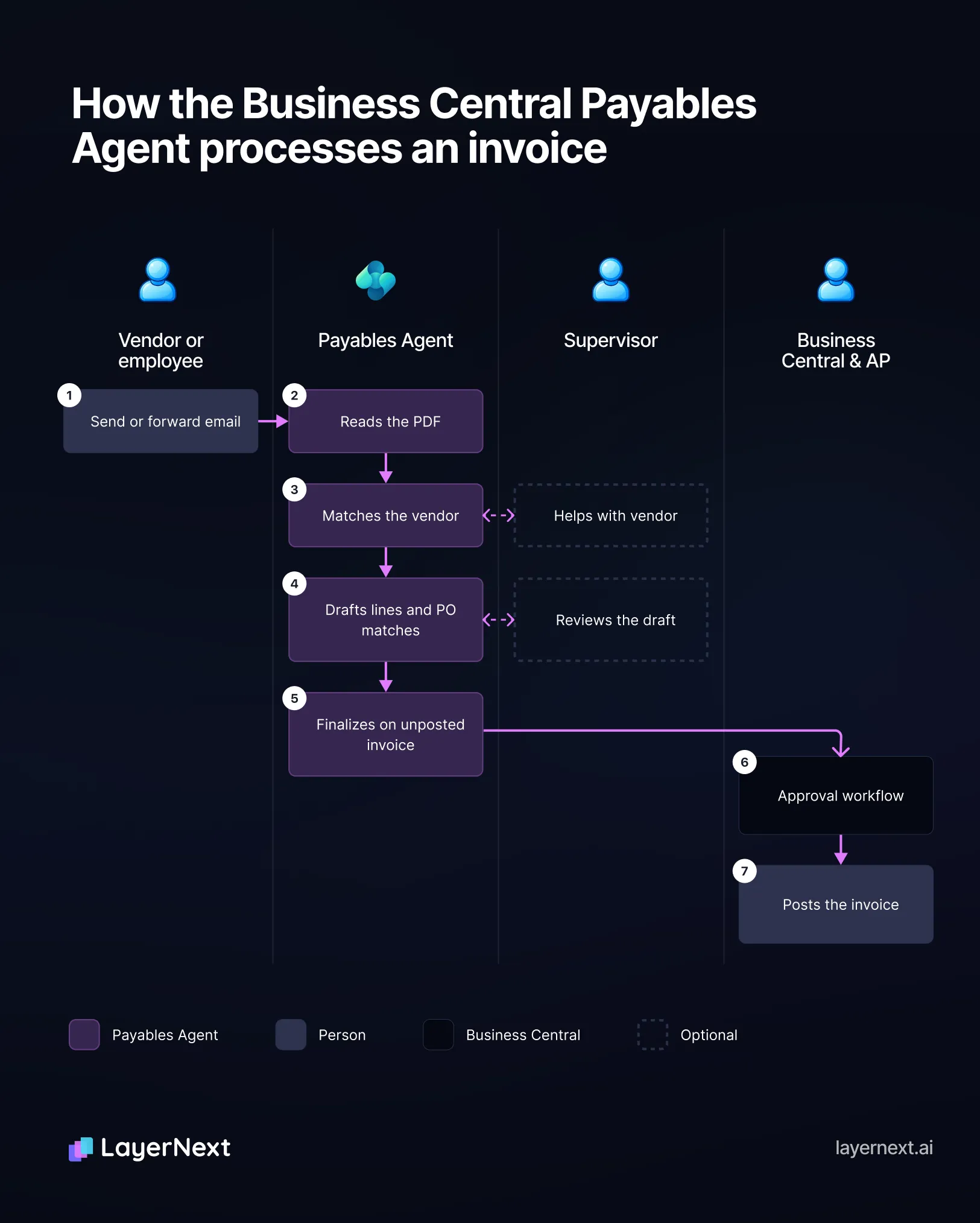
Business Central Payables Agent flow by who acts: a vendor or employee emails the invoice; the agent imports and reads the PDF, matches the vendor, drafts lines and PO matches and finalizes an unposted invoice; a supervisor can optionally help with the vendor and review the draft; Business Central's approval workflow runs and a person posts the invoice; freight and item charges, partial receipts, vendor credits, routing by exception, statements and rebates stay with the AP team.
Incoming Documents and E-Documents
Incoming Documents is the older Business Central feature for registering a file or paper invoice and sending it to an OCR service. E-Documents, added in 2023 release wave 2, handles electronic invoices such as Peppol files, the e-invoicing standard used in Europe and other regions.
The Payables Agent works from Inbound E-Documents, so reviewers use that list and the draft pages, not Incoming Documents.
Requirements Before Turning It On
The agent is switched on for each company. A few requirements sit outside Business Central.
Drafts are only as good as the data behind them. Duplicate vendors, missing item references and thin text-to-account mappings mean more drafts for a supervisor to fix.
Payables Agent Pricing at Distributor Volumes
Copilot features are included with a Business Central license. The Payables Agent is not. It requires Copilot Credits, sold separately.
The agent uses 50 credits to process an invoice and 5 for each invoice line (Microsoft Learn). Emails without a valid invoice attachment use no credits. A credit costs $0.01 on pay-as-you-go, billed through an Azure subscription. A prepaid capacity pack costs $200 a month for 25,000 credits and resets each month, with no rollover.
The line count drives the cost. A 3-line utility bill uses 65 credits. A 60-line stock replenishment invoice uses 350.
The first row is the published billing example. The other rows are illustrations at list prices, and reseller pricing varies.
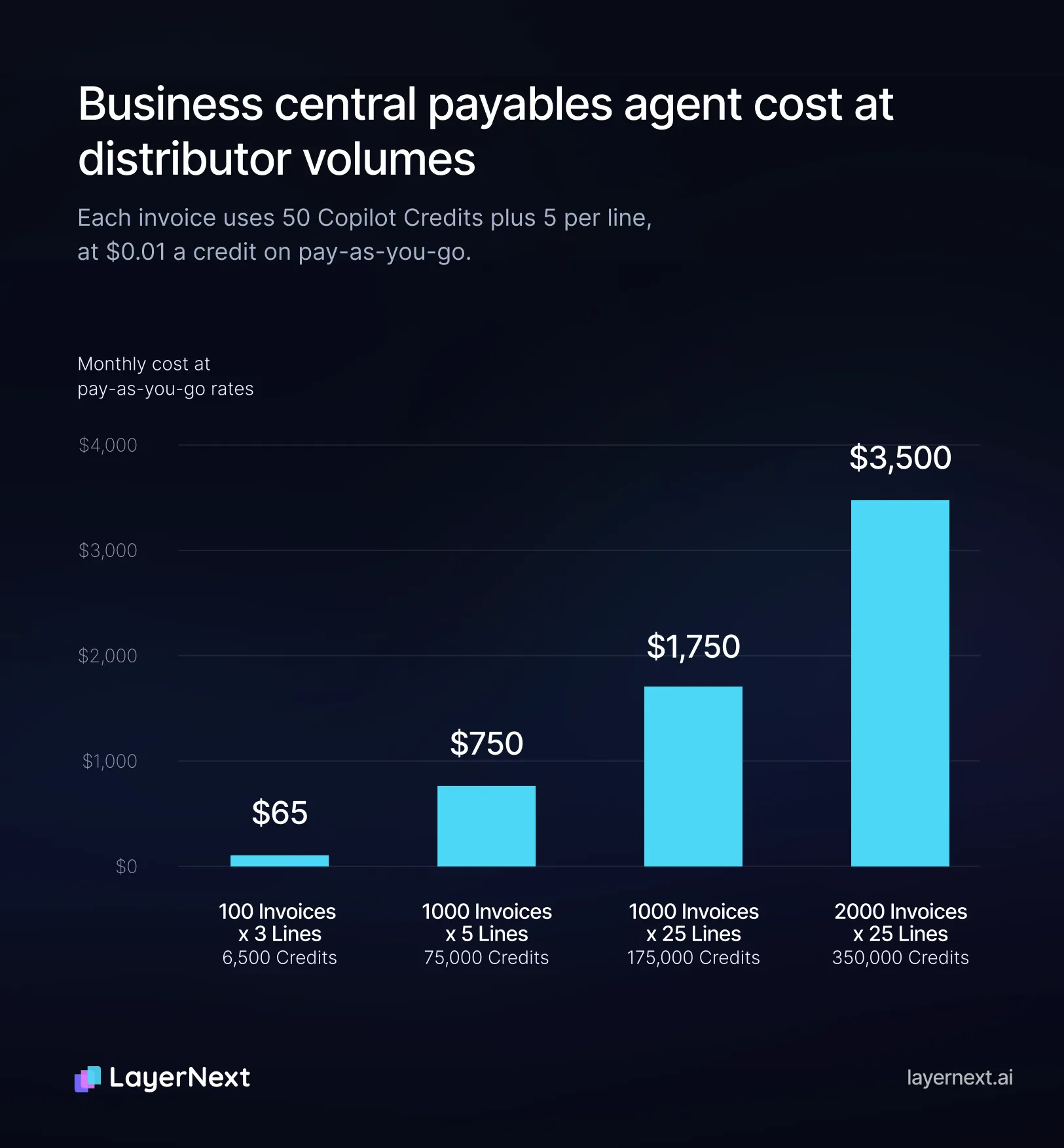
Business Central Payables Agent monthly pay-as-you-go cost: $65 for 100 three-line invoices, $750 for 1,000 five-line invoices, $1,750 for 1,000 twenty-five-line invoices and $3,500 for 2,000 twenty-five-line invoices.
Two details affect the budget. When credits run out, the agent stops processing new invoices but stays active. When credits come back, it picks up every unread invoice email that built up in the meantime, which can use a large share of the new credits quickly. Deactivate the agent before credits run out if you don't want that.
Where drafts are reviewed, reviewer time per invoice belongs in the comparison.
Where the Agent Fits Well
Short invoices with no PO from vendors that bill the same way each month suit the agent. Rent, utilities, telecom, software subscriptions and professional fees have few lines, a G/L account the vendor's history already points to, and no receipt to check.
Account suggestions improve with transaction history, so recurring vendors get better drafts over time.
Distributor Invoices the Agent Leaves to the AP Team
Much of a distributor's invoice volume is PO-backed stock and freight. The cases below are where the AP team still does the work.
Long PO-backed invoices
The agent proposes a PO line for each invoice line, and Business Central checks it. The warnings cover quantity, receipt, unit of measure and price, and the price warning uses the E-Document Matching Difference % set in Purchases & Payables Setup. They are informational, so a draft with warnings can still be finalized.
An October 2026 update made the agent use line amount and expected receipt date when it chooses between similar PO lines, and added warnings for amount differences. The agent does not necessarily select several PO lines for one invoice line on its own. The reviewer does that with Match to order lines.
On a 40-line invoice, a reviewer checks 40 matches and reads each warning before finalizing. The invoice also uses 250 credits.
Partial receipts, backorders and invoices that arrive before the receipt
Since April 2026, Business Central lets a reviewer match an invoice line to any number of PO lines and posted receipt lines, whether or not receipts exist. Each PO line shows a Matched Invoice Lines quantity. That helps when a supplier ships an order in two deliveries and bills it on one invoice.
If a vendor bills 400 units and the warehouse has received 380, Business Central shows a warning and the reviewer decides what to do with the draft. A PO line that has not been received no longer blocks finalizing a draft.
Receipt is handled at posting through the Receipt on Invoice setting, which can be set on the vendor, the PO or the PO line. With it on, posting the invoice creates the receipt automatically. With it off, the receipt is posted manually. It cannot be turned on for orders that use advanced warehouse operations or item tracking, or that are already partially received.
Freight, fuel surcharges and item charges
Many distributors capitalize inbound freight into inventory cost. In Business Central that means a Charge (Item) line assigned across the received lines with Item Charge Assignment, equally or by amount, weight or volume.
The agent drafts lines against items and G/L accounts. The reviewer adds the item charge lines and assigns them to receipt lines. Without that step, freight goes to an expense account and the landed cost of the stock is understated. Fuel surcharges, pallet charges and small-order fees follow the same path.
Vendor credits and returns
Processing of vendor credit notes is in development, with general availability planned for November 2026. The agent will create a purchase credit memo and apply it to the original invoice. Return order matching is not part of it.
Until then, credit notes are handled by hand. Credits that relate to a return order will still be matched by AP after it ships.
Approval routing
The agent has no approval flows and no anomaly detection (Microsoft Learn). Once a draft is finalized, the unposted purchase invoice goes through Business Central's approval workflow.
That workflow uses the limits on Approval User Setup. Each user has a purchase amount approval limit and an approver, and the request can go up the approver chain, to the direct approver, to the first qualified approver or to a specific user. Event conditions can filter on fields of the document.
The agent's match warnings appear on the draft for the reviewer and do not start a workflow. Sending a price variance to the buyer who placed the PO takes extra workflow logic, a flow in Power Automate (Microsoft's workflow automation tool), or an email.
Document formats and daily volume
The agent reads PDF attachments only. It skips files over 10 pages or 5 MB and emails with more than 10 attachments, and it processes up to 100 emails and 500 invoices a day.
Each PDF becomes its own e-document and agent task. Vendor statements, packing slips and remittance PDFs in the same mailbox can show up as unknown document types for someone to clear. Paper invoices, supplier portal invoices and EDI invoices (electronic invoices exchanged directly between two companies' systems) reach the agent only if someone turns them into a PDF and emails it. A mailbox that gets more than 100 invoice emails in a day goes past the daily limit.
Several Business Central companies
Each company has its own agent, supervisors and setup. Companies can share a mailbox if Outlook rules route each company's invoices into its own subfolder and each agent monitors its folder. A vendor that bills two of your companies needs a rule that tells the invoices apart. A distributor with a company per branch or region maintains this for each one.
Vendor statements, price changes and rebates
The agent works one invoice at a time. Reconciling a vendor's monthly statement against open AP, spotting a supplier's unit price creeping up over three months, and tracking what a volume rebate program has earned all sit outside it.
Ways Distributors Handle the Rest
Distributors generally cover the work above in one of three ways.
The first is the Payables Agent plus Power Automate. A partner builds approval routing in Power Automate that starts after a draft is finalized. Everything stays in Microsoft's stack, but each flow has to be built and maintained, and the agent's matching and document limits stay as they are.
The second is an add-on AP app from AppSource, Microsoft's app marketplace. These apps capture documents and run matching and approvals inside Business Central. They differ a lot, so check line-level PO and receipt matching, item charges, multi-company support and how approvals route.
The third is an AP automation platform that posts through Business Central's API, the published connection other software uses to read and write its data. The platform reads and matches each invoice, routes exceptions and approvals to people, then posts it. Check whether it posts the invoice or leaves a draft, how exceptions reach people, and whether the AP team ends up working in two systems.
How LayerNext Runs AP on Business Central
LayerNext is an AI-powered financial operations platform whose AI agents do AP work on Business Central. For a Business Central company it replaces the Payables Agent. The AP inbox connects to LayerNext instead of a monitored mailbox, and the AI agents carry each invoice from the inbox to a posted invoice in Business Central. The AP team works in LayerNext, not across a mailbox, a draft queue and Business Central. An invoice with nothing wrong posts without anyone approving it.
The agents run whatever workflow your finance team defines through business rules and custom workflows, so the steps below are common starting points. A person steps in for an exception, a question the agents need answered, or an approval a rule assigns.
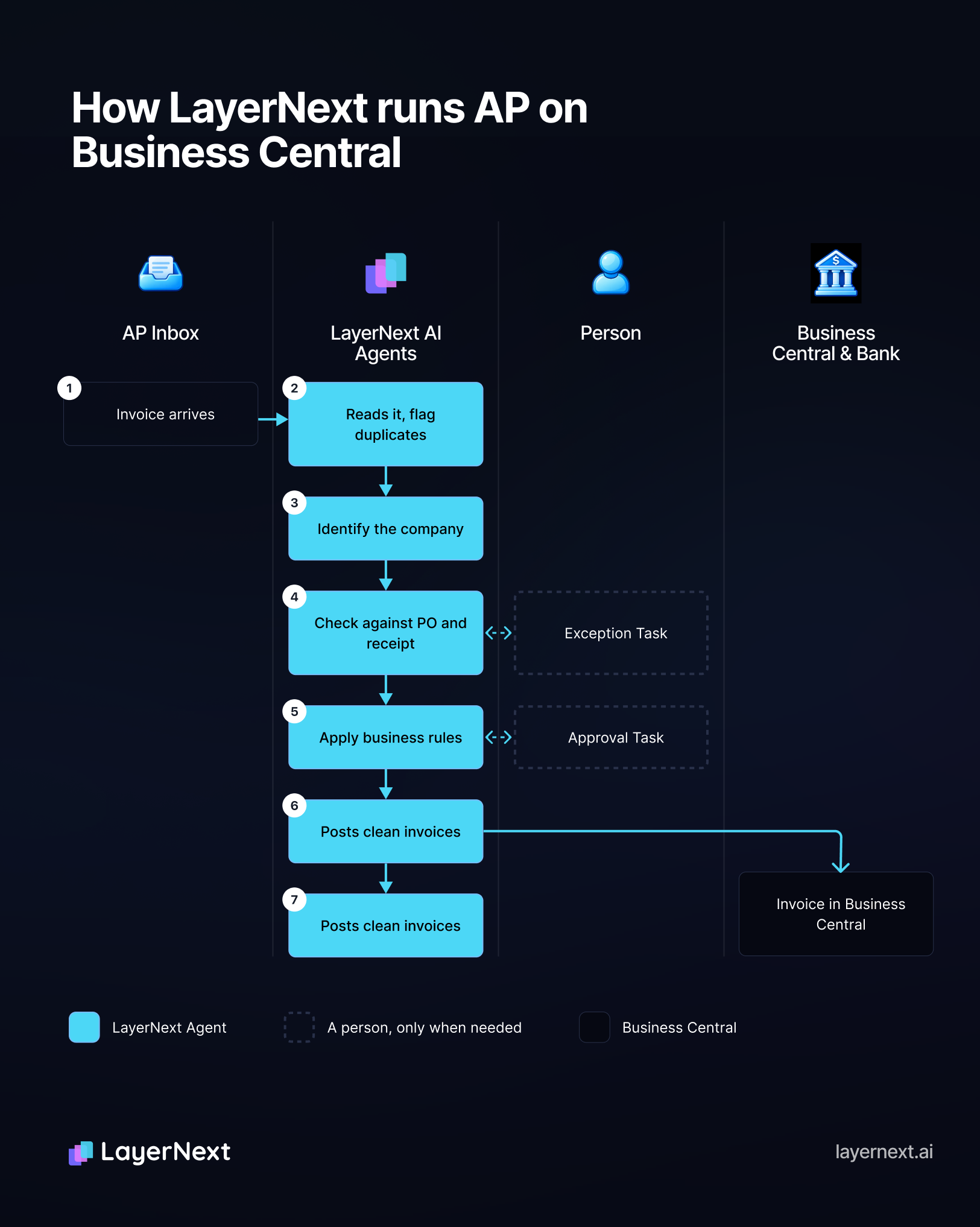
LayerNext flow by who acts: an invoice arrives in the AP inbox; LayerNext AI agents read it, identify the company, check it against the PO and receipt, apply approval rules and post clean invoices through the Business Central API, then handle credits, statements and rebates; a person steps in only for exceptions, questions and rule-assigned approvals; every step is logged in the audit trail.

Across deployments, finance teams see 90 to 165 hours saved a month and 95%+ task accuracy on defined workflows. The figures are not specific to distributors or Business Central, and they depend on invoice volume and data quality.
A Short Check Before You Decide
Export last month's posted purchase invoices and work through these.
- Count the invoices tied to a PO against those with no PO.
- Work out the average lines per invoice, then multiply at 50 credits per invoice plus 5 per line.
- Count the invoices over 10 pages, on paper, in a supplier portal or sent by EDI, and find the busiest day's invoice emails against the limit of 100.
- Count the invoices that carry freight or surcharges, and decide where that cost should land in inventory.
- Note the exception rate and who resolves each kind of exception today.
- List the approval rules you use beyond amount limits, and the number of Business Central companies.
- Add up the hours spent each month on credits, vendor statements and rebate claims.
FAQ